How to Add a Stream Overlay to OBS Studio (Browser Source Guide)
An animated overlay is not an image you drag into OBS — it is a Browser Source. Here is the full setup, including the two settings that cause most of the problems.
If you have just bought an animated overlay and OBS is showing you an empty scene, the missing step is almost always the same one. An animated overlay is not an image you drag in — it is a Browser Source. This guide walks through the whole setup once, properly, so you do not have to guess.
First, check what you actually downloaded
Stream overlays come in two forms, and they install differently.
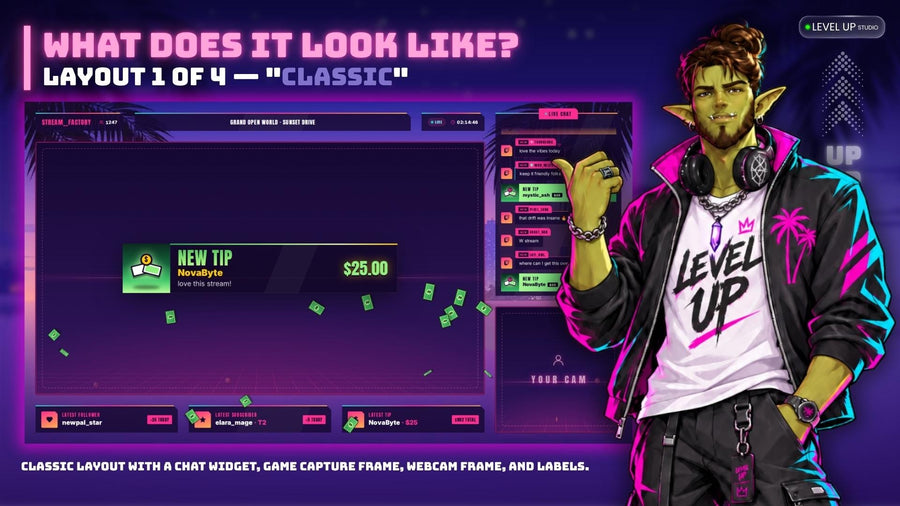
- A hosted overlay link. You open an install link, the overlay lands in your StreamElements account, and you copy a single overlay URL out of it. This is how animated, interactive overlays work — chat boxes, goal bars, alert areas and anything that reacts to your stream in real time.
- Image and video files (PNG, WEBM, MP4). These are static or looping graphics — webcam frames, backgrounds, stream screens, stinger transitions. They go into OBS as an Image or Media Source, not a Browser Source.
If your download is a link, keep reading. If it is a folder of PNG files, skip to Layer order further down.
Adding a Browser Source in OBS Studio
- In OBS, pick the scene you want the overlay in.
- In the Sources panel, click + and choose Browser.
- Give it a name you will recognise later — Overlay is fine, but Cozy Cats overlay is better once you have three of them.
- Paste your overlay URL into the URL field, replacing whatever is there.
- Set the width and height (see below).
- Click OK.
Set the width and height to match your canvas
OBS creates every new Browser Source at 800 × 600 pixels by default. Those two fields set the viewport of the web page — in other words, they tell the overlay how big a screen it is being rendered onto. Leave them at the default and your overlay will render into a small box and then get stretched, which is why overlays so often look blurry or cropped.
Set Width to 1920 and Height to 1080 for a standard Full HD stream. If your canvas is a different size, match it exactly rather than resizing the source afterwards.
Do not clear the Custom CSS box
OBS pre-fills the Custom CSS field with this:
body { background-color: rgba(0, 0, 0, 0); margin: 0px auto; overflow: hidden; }That snippet does three jobs: it makes the page background transparent, removes the default body margin, and hides the scroll bar. If your overlay is sitting on a solid black or white rectangle instead of floating over your gameplay, an emptied or edited Custom CSS box is the first thing to check.
Two checkboxes worth understanding
Refresh browser source when scene becomes active. Reloads the overlay every time you switch to that scene. Useful while you are still adjusting settings, because you see changes without touching anything. Less useful mid-stream, since anything with a running state — a goal bar animation, a chat history — starts over each time you switch scenes.
Shutdown source when not visible. Unloads the page whenever the source is hidden. It frees resources, which matters on a weaker machine, but it also means the overlay is starting cold every single time. If your chat box turns up empty or your goal bar animates in again on every scene change, this setting is usually why.
Frame rate
You can set a custom frame rate per Browser Source; when you enable it, OBS uses 30 FPS by default. Most overlays are designed around 30, and dropping a decorative source to 30 while your stream runs at 60 is a cheap way to get some CPU back.
Layer order
OBS draws sources top to bottom: the source at the top of the list is drawn in front. A working stream scene almost always stacks like this, top to bottom:
- Overlay (frames, chat box, labels)
- Webcam or VTuber model
- Gameplay or screen capture
- Background
If your overlay has vanished, drag it to the top of the Sources list before you assume anything is broken. A source hidden behind a full-screen game capture looks identical to a source that failed to load.
Test before you go live
Fire a test alert from your StreamElements dashboard and watch it land in OBS. Switch away to another scene and back again. Send a message in your own chat and confirm it appears in the chat widget. Five minutes of this beats discovering a broken overlay in front of an audience.
Where to get overlays that install this way
Every animated overlay we make ships with a one-click install link, so the StreamElements half of this guide is already done for you — you copy one URL and paste it into the Browser Source.
- Stream Overlays — full matching layouts
- Widgets — chat boxes, goal bars, reminders
- Alerts — follows, subs, tips, raids
Sources: OBS Studio documentation, Browser Source.