Do Animated Overlays Hurt Your FPS? What Browser Sources Actually Cost
The honest answer: an animated overlay costs something, but far less than most people assume, and almost never where they think. Here is what a browser source actually uses, and the five settings that decide whether it is free or expensive.

It is the question that stops people buying an animated overlay: if it is running live in my scene, is it stealing frames from my game?
The honest answer is that it costs something, it is usually small, and the amount depends on five settings most streamers never open. Here is what is actually happening, and how to measure it on your own machine instead of guessing.
What a browser source really is
An animated overlay is a small web page. OBS runs it in an embedded browser, renders the result to a texture, and composites that texture into your scene like any other source.
So the cost breaks into three parts:
- Rendering the page — the actual animation work. This is the part that varies.
- Compositing it into the scene — the same cost as any image layer. Negligible.
- Encoding the final frame — unchanged. Your encoder encodes a 1920×1080 frame whether the overlay is animated, static or absent. An overlay does not make the encode harder.
That last point matters, because "dropped frames" in OBS usually means the encoder or the network is behind. An overlay is not the cause of encoder lag.
Hardware acceleration is the setting that matters
In Settings → Advanced there is a checkbox for browser source hardware acceleration. It decides which chip draws your overlay.
With it on, OBS hands the rendering of web-based overlays to your graphics card. CPU load drops and animation runs smoother — at the cost of a small slice of GPU. With it off, the CPU does the drawing, which is where people see spikes with complex animated overlays.
There is one real trade-off. If your GPU is already running flat out — a demanding game at high settings, GPU encoding on the same card — moving more work onto it can cause dropped frames. So:
- CPU-bound (older processor, lots of sources, x264 software encoding): leave hardware acceleration on.
- GPU-bound (modern CPU, GPU pinned at 99% in-game): try turning it off and watch whether frames recover.
There is no universally correct answer, which is exactly why it is worth testing rather than copying someone's settings video.
Four more settings that cut the cost
- Shutdown source when not visible. In the browser source properties. With it on, the page stops running entirely when the scene is not active. Your Starting Soon screen then costs nothing while you are live. Turn it on for everything that is not on screen the whole stream.
- Refresh browser when scene becomes active. Pairs with the one above — it makes timers, counters and alert queues start clean rather than resuming mid-animation.
- Use custom frame rate. Browser sources can run at their own FPS. A chat box, a goal bar or a counter does not need 60 frames a second; 30 looks identical and halves the work. Reserve the full rate for things with real motion.
- Size the source correctly. A browser source set to 1920×1080 renders a full HD page even if you then scale it down to a corner. If a widget occupies a 500×300 box on screen, set the source to roughly that and let the widget lay itself out. Rendering pixels you immediately throw away is the most common waste.
What is actually expensive
Not all animation is equal. Ranked from cheap to expensive:
| Cheapest | CSS transitions and transforms — moving, fading, scaling, rotating. The browser hands these to the GPU and they cost almost nothing. |
| Cheap | Text that updates — timers, counters, chat lines. The work is tiny; the redraw is what costs, and it is small. |
| Moderate | WebGL or canvas backgrounds — real rendering every frame, but on the GPU and usually at a modest resolution. |
| Expensive | Large looping video or a heavy GIF as a background layer — decoding a video stream every frame, plus memory. A 1920×1080 GIF is usually the single heaviest thing in a scene. |
| Worst | Several full-screen browser sources all visible at once, each at 1920×1080 and 60 FPS, none of them set to shut down. |
This is why a well-built animated overlay can be lighter than a "static" setup that leans on a looping MP4 background.
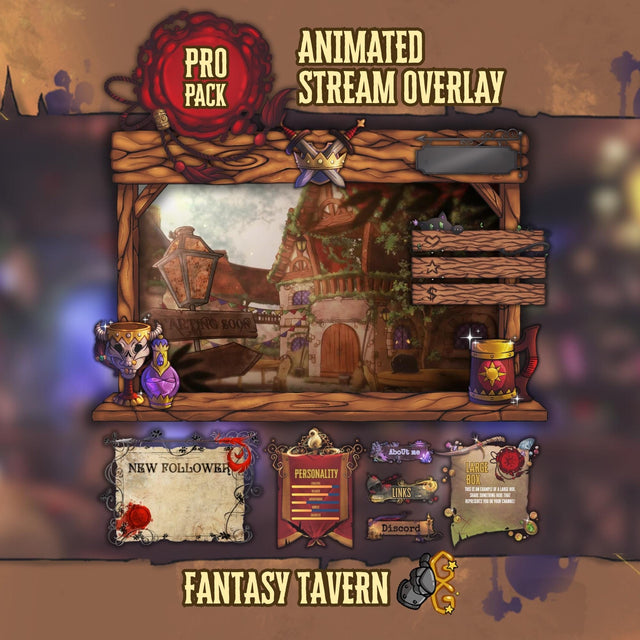 Stream OverlayFantasy Tavern Stream Overlay
$49.99
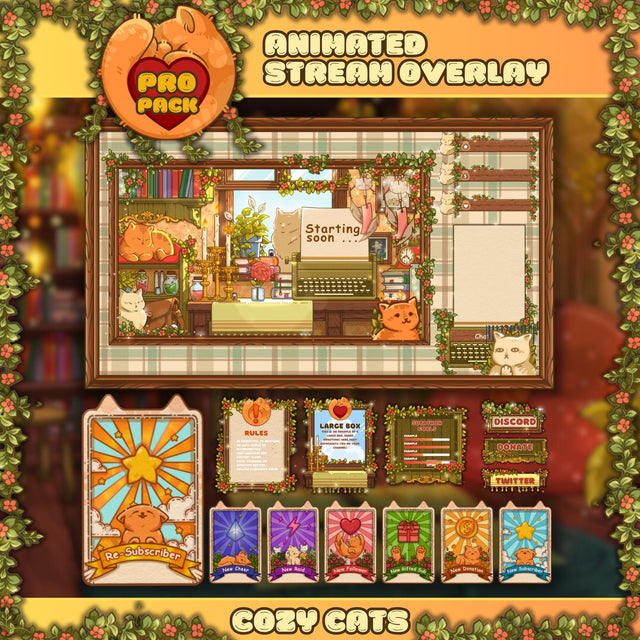 Stream OverlayCozy Cats Stream Overlay
$39.99
 Stream WidgetCustomizable Twitch Goal Widget
$9.99
Measure it instead of guessing
Five minutes gives you a real number for your machine:
- Open View → Stats in OBS. Note CPU usage, the render lag figure and the dropped/missed frame counters.
- Start a recording with your normal scene, play for two minutes, stop. Write down the numbers.
- Hide the overlay source. Repeat exactly the same two minutes.
- Compare. The difference is what the overlay costs you — not what a forum post says it costs.
Watch render lag specifically. Rising render lag means the compositor cannot keep up and is the symptom a heavy overlay actually produces. Encoding lag and dropped network frames point at your encoder settings or your upload, not at the overlay.
If your frames really are suffering
In the order worth trying:
- Turn on Shutdown source when not visible for every source that is not permanently on screen.
- Drop browser sources to a custom 30 FPS, except the one with real motion.
- Resize oversized browser sources to the box they actually occupy.
- Flip hardware acceleration and re-measure — both directions, two minutes each.
- Cap your game's frame rate. An uncapped game taking 100% of the GPU starves everything else, overlay or no overlay.
- Replace any full-screen looping video background with a CSS or WebGL equivalent.
If none of that moves the number, the overlay was never the problem. Our OBS overlay checklist covers the other usual suspects.
FAQ
Do animated overlays lower FPS in games?
They can, slightly, by taking a small amount of GPU or CPU. On a machine that is not already at its limit the difference is usually within the noise. On a machine already pinned at 100%, anything you add shows up — including a static image.
Is a browser source heavier than an image source?
Yes, because a page has to be rendered. Whether that difference is measurable depends entirely on what the page does.
Should I turn browser source hardware acceleration on or off?
On if your CPU is the bottleneck, off if your GPU is. Test both for two minutes each and keep the one with lower render lag.
Does an animated overlay increase my bitrate or make the stream blurrier?
Motion costs bits, so a busy full-screen animation behind gameplay can take bitrate away from the game. A framed overlay with movement at the edges barely registers. Keep animation away from the centre of the picture and it is a non-issue.
Can I run an animated overlay on a laptop?
Usually yes. Enable hardware acceleration, set widgets to 30 FPS, turn on shutdown-when-not-visible, and avoid full-screen video backgrounds.
Every overlay we build runs as CSS, JS and WebGL rather than looping video, precisely so the heavy option never ends up in your scene. If you are setting one up for the first time, start with adding a stream overlay to OBS as a browser source.